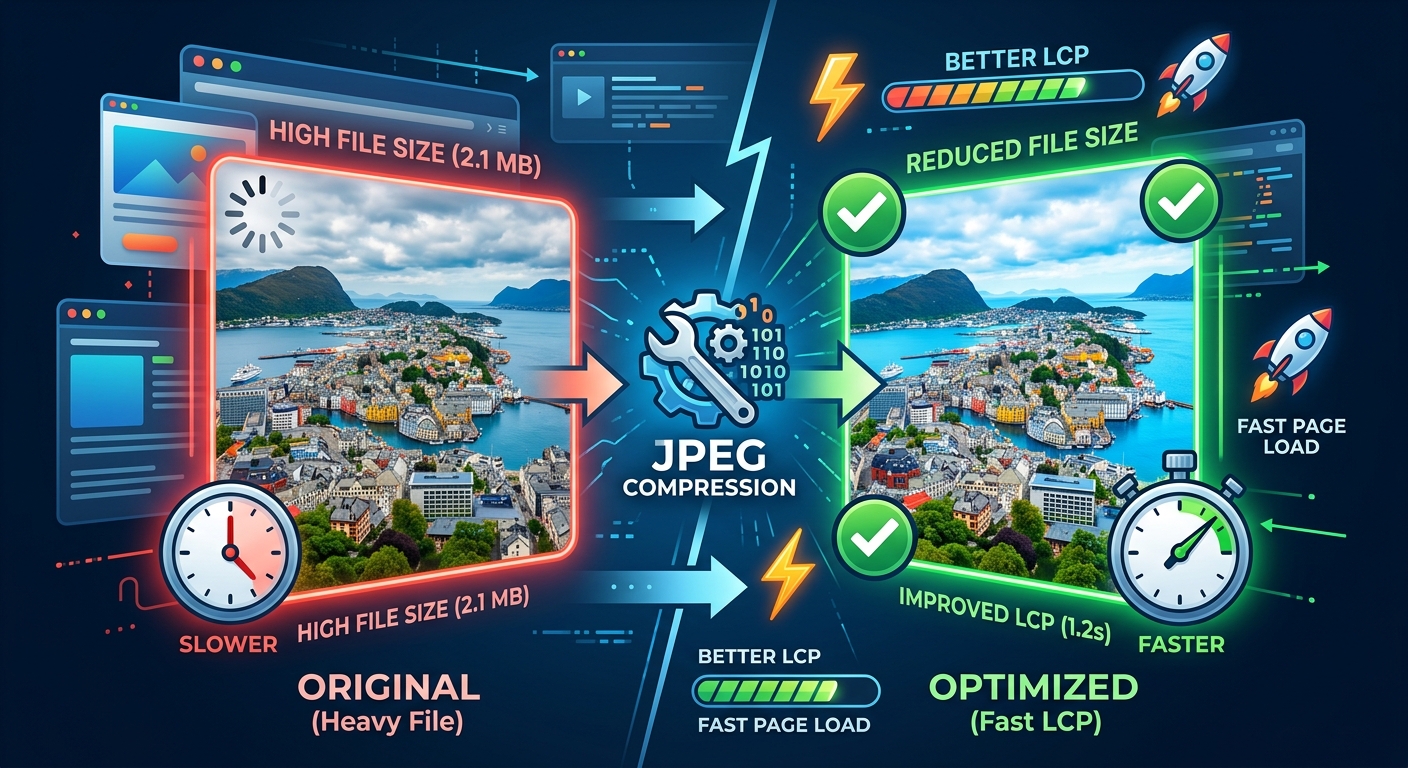
Your hero image loads. The browser paints the screen. A timer stops. That timer is Largest Contentful Paint, and for most pages, a JPEG image is what triggers it. Get the image right and your LCP number looks good. Get it wrong and you are handing visitors a blank rectangle while bytes trickle in over a mobile connection. The fix is not mysterious. It lives inside the JPEG file itself, in settings most developers have never touched.
JPEG quality settings, metadata bloat, and encoding mode each have a direct cost in bytes, and those bytes translate directly into LCP time.
- Dropping quality from 95 to 80 typically halves file size with almost no visible difference on photographic images.
- EXIF and ICC metadata can add 30-100 KB to a file the browser never needs in order to display a single pixel.
- Progressive JPEG encoding gives users a faster perception of load by rendering a low-resolution pass before the full image arrives.
How JPEG Encoding Turns Pixels into Compressed Bytes
JPEG uses a lossy compression process built around Discrete Cosine Transform (DCT). The encoder splits an image into 8x8 pixel blocks, transforms each block into frequency data, and then quantizes that frequency data according to a quality matrix. Higher quality means less quantization. Less quantization means more data retained. More data retained means a bigger file.
The quality setting is a dial controlling how aggressively frequency data gets discarded. At quality 95, almost nothing is discarded and the file is enormous. At quality 60, a lot gets discarded but the image still looks recognizable. The sweet spot for most web photos sits between 75 and 85, where the visual difference from the original is hard to spot but file size drops sharply.
This tradeoff explains why JPEG has outlasted dozens of challengers. According to JPEG's official compression specification, the format was designed specifically to handle photographic, continuous-tone content with better efficiency than anything else available at the time, and that core advantage still holds for delivery on the web.
Quality Levels and What They Actually Cost in Kilobytes
Numbers beat theory every time. The table below shows typical output sizes for a 1500 x 1000px photographic JPEG at different quality settings. The source was a 4.1 MB uncompressed TIFF. Results vary by image complexity, but these figures are representative of real-world photographic content.
File Size vs. Quality Setting for a 1500 x 1000px Photo
| Quality Setting | Approx. File Size | Reduction from Q95 | Visual Quality |
|---|---|---|---|
| 95 | ~450 KB | Baseline | Near-lossless |
| 85 | ~210 KB | 53% | Excellent, indistinguishable at normal size |
| 75 | ~135 KB | 70% | Good, minor artifacts visible at zoom |
| 65 | ~95 KB | 79% | Acceptable, compression visible on close inspection |
| 55 | ~68 KB | 85% | Noticeable blocking artifacts |
The jump from quality 95 to quality 85 is where the best value lives. You cut file size in half and most viewers cannot tell the difference on a normal screen. After quality 75, diminishing returns kick in hard. You lose more visual quality than you gain in savings.
How Large JPEGs Slow Down Your LCP Score
LCP measures the time from navigation start until the largest element in the viewport finishes rendering. According to Google's LCP metric guidelines, a good score is under 2.5 seconds on a typical mobile connection. For most marketing and editorial pages, that largest element is a JPEG hero image.
A heavy JPEG slows LCP in two distinct ways. First, raw download time goes up. Every extra kilobyte costs time on a 4G or throttled connection. Second, the browser must decode the image before it can paint pixels. Larger files take longer to decode, and that work competes with everything else the main thread is handling at the same time.
There is also the matter of discovery. If the browser does not find your hero image early in the HTML, it starts downloading late regardless of how small the file is. But even perfect preloading cannot rescue a 600 KB JPEG on a congested connection. Size reduction is always the first lever to pull before worrying about preload hints or CDN placement.
Progressive vs. Baseline Encoding: What the Difference Feels Like
JPEG comes in two flavors. Baseline encodes the image top to bottom. The browser displays rows of pixels as they arrive, showing a partial image crawling down the screen. Progressive encodes the image in multiple passes at increasing resolution. The browser can paint a blurry full image almost immediately, then sharpen it as more data arrives.
For large images above 30 KB, progressive encoding almost always wins on perceived performance. Users see something immediately instead of watching a grey box slowly fill from the top. The difference to actual file size is minimal, often under 2%, but the difference to how loading feels is significant.
Most build tools and encoder libraries support progressive output with a single flag. In ImageMagick that is -interlace Plane. In libjpeg-turbo it is -progressive. In Sharp for Node.js it is progressive: true inside the JPEG options object. There is no good reason not to enable it.
EXIF Metadata and the Kilobytes You're Shipping for No Reason
When a camera saves a JPEG, it buries a block of EXIF data inside the file. That block contains the camera model, lens settings, GPS coordinates, timestamps, copyright strings, and often a full-resolution embedded thumbnail of the image. None of this helps the browser display pixels on screen.
On images straight from a DSLR or high-end smartphone, EXIF blocks commonly run 30-80 KB. Some images from photo editing software stack ICC color profiles and XMP data on top of that, pushing metadata over 100 KB. You are shipping a detailed record of camera settings with every single image load, and your visitors are paying for it in seconds.
Stripping metadata is lossless from a visual standpoint and often removes more bytes than dropping two quality points would. Every serious image pipeline should strip EXIF and XMP by default, retaining the ICC color profile only if strict color accuracy matters for the specific use case.
Picking the Right Quality Threshold for Your Specific Images
There is no universal magic number. The right threshold depends on the type of image being compressed. A few guidelines that hold up across most real-world cases:
- Hero images and full-width photos: quality 80-85 is a reliable starting point. Most visitors cannot distinguish quality 95 from quality 82 at normal viewing sizes on standard displays.
- Thumbnails and small gallery images: quality 70-75 works well. These are viewed small, and compression artifacts are harder to see at reduced dimensions.
- Images with text or sharp lines: JPEG is a poor format choice regardless of quality setting. Use PNG for screenshots, diagrams, and anything with crisp edges or flat color areas.
- Product images on e-commerce pages: stay at quality 80 or above. Artifacts on a product shot damage buyer trust more than a few extra kilobytes hurt LCP.
Test on your actual assets, not on stock photos borrowed from a compression tool's demo page. What looks fine in a utility might look rough on a large desktop monitor at full resolution. Pick 10 representative images from production and run them through quality comparisons before committing to a number.
Auditing Your Current Assets Before Locking In a Pipeline Setting
Many codebases carry images exported at quality 95 or higher by designers who never thought about web delivery. Others have been run through multiple save cycles and are already degraded. You need to know which situation you are in before writing a compression rule that applies to everything.
Before locking in a quality setting, take a sample of your most important images and compress JPG files online to compare output sizes at different quality levels. If a tool can cut 60% off your image at quality 82 with no visible difference, your originals are over-inflated. If savings are under 10%, the files are already lean and metadata stripping may be the bigger win.
Focus this audit on images that appear above the fold. Those are the candidates for your LCP element. A 400 KB hero image that could be 180 KB is costing you real Core Web Vitals points on every page load.
Automating JPEG Compression in a Build Pipeline
Manual compression is fine for auditing, but automation is what keeps quality consistent across an entire site. Here is a repeatable process for setting up JPEG optimization in a Node.js build pipeline using Sharp:
- Install Sharp with
npm install sharp. It wraps libvips and handles JPEG encoding natively without requiring ImageMagick on the system. - Write a build script that reads source images from one directory and writes compressed versions to a separate output directory. Keep originals untouched.
- In the Sharp pipeline, set
quality: 82,progressive: true, andmozjpeg: trueif you want MozJPEG's better quantization tables for additional byte savings. - Add
.withMetadata(false)to strip all EXIF and XMP before writing the output file. - Hook the script into your CI build so it runs on every merge to the main branch, not only when someone remembers to trigger it manually.
- Add a file size budget check. If any output exceeds a defined threshold, such as 150 KB for a hero image, fail the build and require a manual review before the asset ships.
This approach removes the dependency on individuals remembering compression settings during handoff. It also generates a log of every image processed, its output size, and whether it tripped the budget threshold, giving you an audit trail for debugging future regressions.
Less Common Optimizations Worth Adding to Your Toolkit
Beyond quality settings, metadata stripping, and encoding mode, a few additional techniques can trim bytes without a visible quality tradeoff:
- Chroma subsampling: JPEG stores color (chroma) channels separately from brightness (luminance). At quality below 90, most encoders default to 4:2:0 subsampling, which stores chroma at half resolution. This is invisible on photographic content and saves 10-20% compared to full 4:4:4 encoding. If your encoder is set to 4:4:4 for all quality levels, switch it.
- Image dimensions: Serving a 2400px wide image in a slot that displays at 800px wastes both resolution and bytes. Resize images to their actual display dimensions before compressing. A 2400px image at quality 82 is still larger than an 800px image at quality 82 and looks identical to the visitor.
- MozJPEG: This encoder variant from Mozilla uses improved quantization tables that produce files 5-15% smaller than standard libjpeg at the same perceptual quality. Output is valid standard JPEG. Any browser that opens a regular JPEG opens a MozJPEG file without issue.
From First Byte to Full Render: Where JPEG Optimization Pays Off
JPEG optimization is not a one-time cleanup task. Images enter your codebase continuously through CMS uploads, designer handoffs, and marketing campaigns. Each one is a potential LCP regression if there is no automated gate stopping oversized files from reaching production.
Start with the quality dial. Move it to 80-85 and measure the visual difference on your specific images. Strip EXIF metadata unconditionally. Enable progressive encoding for anything larger than a thumbnail. Then automate all of it so the same rules apply whether the next image comes from a developer who thinks about compression daily or a content editor uploading their first asset.
The browser rendering your page does not care about camera metadata or lossless precision in a 95-quality export. It cares about bytes arriving fast. Give it fewer of those, and your LCP number will reflect exactly that.